
If you are moving a WooCommerce or WordPress store to Shopify, most of the work is mechanical. Products export, customers import, the theme gets rebuilt. The two things that actually cost you money are the redirects and the blog, and those are the two most migration checklists rush past. This guide walks the whole move in the order that avoids downtime, then deals honestly with the blog, which is where years of SEO usually leaks away.
Decide these three things before you touch anything
Migrations go wrong when they start with the export button. Settle these first and the rest is execution:
- Are you moving the blog, or only the store? These are separate decisions and they do not have to have the same answer. More on this below.
- Is your URL structure changing? Almost always yes. Shopify forces
/products/and/collections/paths. Every changed URL needs a redirect, and that list is your single most important migration artifact. - What is your rollback? Keep WordPress running and reachable until Shopify is verified live. Do not cancel that hosting the same week you launch.
What actually moves, and how hard each piece is
- Products and inventory. Export from WooCommerce to CSV and import to Shopify, or use a migration app. Mostly mechanical. If you are moving a WooCommerce store specifically, we go through that in detail in our WooCommerce to Shopify migration guide. Variants, images and metafields are where the cleanup time goes.
- Customers. Importable, but passwords never transfer. Every customer will need to reset, so plan the email that tells them why.
- Orders. Historical orders can be imported for records, though they will not carry full fulfilment history. Decide whether you need them in Shopify or just in an archive.
- Design and theme. Rebuilt from scratch in a Shopify theme. Nothing carries over. Budget more time here than you expect.
- URLs and redirects. The part that decides whether you keep your traffic.
- Content and the blog. The part that decides whether you keep your content marketing.
The migration order that avoids downtime
- Build the Shopify store on its
.myshopify.comdomain while WordPress stays live and untouched. - Import products, then customers, then orders. Verify counts against WordPress after each step rather than at the end.
- Rebuild the theme and template pages. Get the product, collection, cart and checkout paths working properly.
- Crawl your existing WordPress site and export every indexed URL. This is your redirect source list.
- Map each old URL to its new Shopify equivalent, and decide what happens to the ones with no equivalent.
- Install the redirects in Shopify before you switch DNS, not after.
- Point the domain at Shopify. Keep WordPress alive on a temporary hostname.
- Resubmit your sitemap in Search Console and watch coverage daily for the first fortnight.
Redirects: the step that decides whether you keep your rankings
Every URL that changes and does not get a 301 throws away the ranking and the backlinks behind it. Shopify has a built-in URL redirect tool under Online Store, and it accepts a CSV, so this is a bulk job rather than a manual one.
Two rules worth following. Redirect to the closest real equivalent, never in bulk to the homepage, because Google treats a mass homepage redirect as a soft 404 and drops the page anyway. And check your redirect list against your top pages by backlinks and by traffic, not just against your sitemap, since the pages that matter most are usually old ones you have forgotten.
Give yourself a fortnight of watching Search Console after launch. Coverage errors and a dip in impressions are normal for a few weeks. A dip that keeps going usually means a redirect gap.
What happens to your domain
You do not move the domain so much as re-point it. The domain itself stays with whoever you registered it through, and you change where it points once Shopify is ready. Two routes: keep the registrar you have and update the DNS records Shopify gives you, or transfer the registration to Shopify and let it manage DNS for you.
Keeping your existing registrar is usually the safer choice, especially if that domain also handles your email. A transfer locks the domain for a period afterwards and, if email is running on the same domain, a careless DNS change takes your mail down along with the site. Change the web records, leave the mail records alone, and verify mail still flows before you go any further.
Whichever way you go, do it last. Point the domain only after the Shopify store is built, the redirects are loaded and you have clicked through it yourself.
Why the blog is the hardest part of the move
WordPress is a publishing platform first. Your blog probably relies on things Shopify does not match: a real editor, categories and tags, an SEO plugin like Yoast or Rank Math, custom fields, comments, and a URL structure Google has indexed for years.
Shopify’s blog engine is deliberately simple. One level of blog, basic tags, limited SEO control and no plugin ecosystem. Push years of WordPress posts into it and you tend to lose formatting and internal structure, redo the on-page SEO by hand, and create a large pile of changed URLs to redirect. That is a lot of risk for content that was already working.
None of that means you should not move the store. It means the blog deserves its own decision, taken separately from the storefront.
Two honest options for the blog
- Move the posts into Shopify’s native blog. Reasonable for a small or young blog. Budget real time for reformatting, redoing on-page SEO, and 301-redirecting every old post URL.
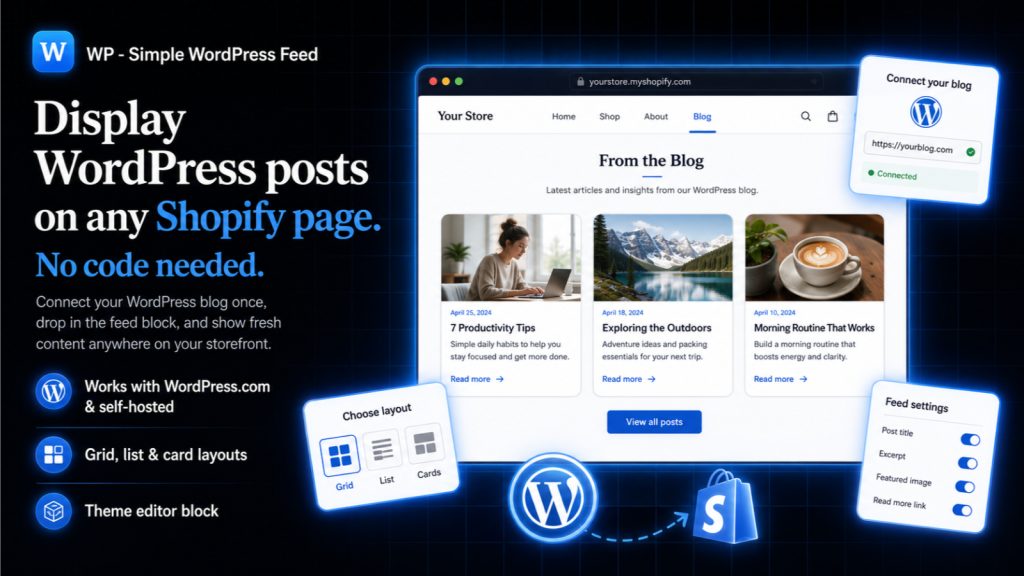
- Keep the blog on WordPress and display it on Shopify. WordPress stays where you write, with the tools you already use, and the posts appear on your Shopify storefront for visitors and for Google. You skip the lossy content migration entirely.
For a store with an established blog and existing rankings, the second option carries far less risk, because nothing about the content that already ranks has to change.
How to keep the WordPress blog and still show it on Shopify
The detail that matters is where the content lives in the eyes of a search engine. A subdomain like blog.yourstore.com splits your authority across two hostnames. An iframe hides the content from crawlers entirely and looks bolted on. Neither is what you want.
Native embedding keeps the posts on your main Shopify domain as real, indexable content. That is what our app Simple WordPress Blog Feed does. You point it at your WordPress site and the posts render on any Shopify page, on your own domain, with no subdomain, no iframe and no SEO split. You keep publishing in WordPress and the feed stays in sync.
After launch: what to check in the first month
- Search Console coverage, weekly. Rising “not found” counts mean redirect gaps.
- Your top twenty landing pages from before the move. Each should resolve to a working equivalent.
- Internal links inside old blog posts. These often still point at WordPress paths.
- Structured data and canonical tags on the new templates.
- Page speed on mobile, since a freshly built Shopify theme with a dozen apps installed is rarely fast by default.
Further reading
If you want a second walkthrough of the storefront side of the move, ShopSideK have written a thorough WordPress to Shopify migration guide. For the blog decision specifically, our own piece on running a WordPress blog on Shopify goes deeper on the display-versus-migrate question.
The takeaway
The storefront half of a WordPress to Shopify migration is a known quantity. The traffic you lose almost always comes from two places: URLs that changed without a redirect, and a blog that got flattened on the way across. Build the redirect map before you switch DNS, and treat the blog as its own decision rather than a folder to drag over. Done that way, a migration costs you a fortnight of watching Search Console instead of a year of rebuilding rankings.
Simple WordPress Blog Feed
Keep writing in WordPress and show your posts on any Shopify page. No subdomain, no iframe, no SEO split. Free trial.
Install Simple WordPress Blog Feed on Shopify →See full app details